
Before you start
- Your club is set up on fpv-race-pits.com. Not yet? Start your club. It takes about two minutes and gives you your own address, like your-club.fpv-race-pits.com.
- The fpv-race-pits timing app is installed on the race laptop. Download it for Windows, Mac or Linux.
- You are the club's owner, an admin or a race director. Only they can connect a timing laptop.
- The laptop is online for the few minutes it takes to connect. After that it can race without internet.
- Live timing on your club website is free on every plan.
Connect, step by step
- On the race laptop, open the timing app and go to Setup → Club website.
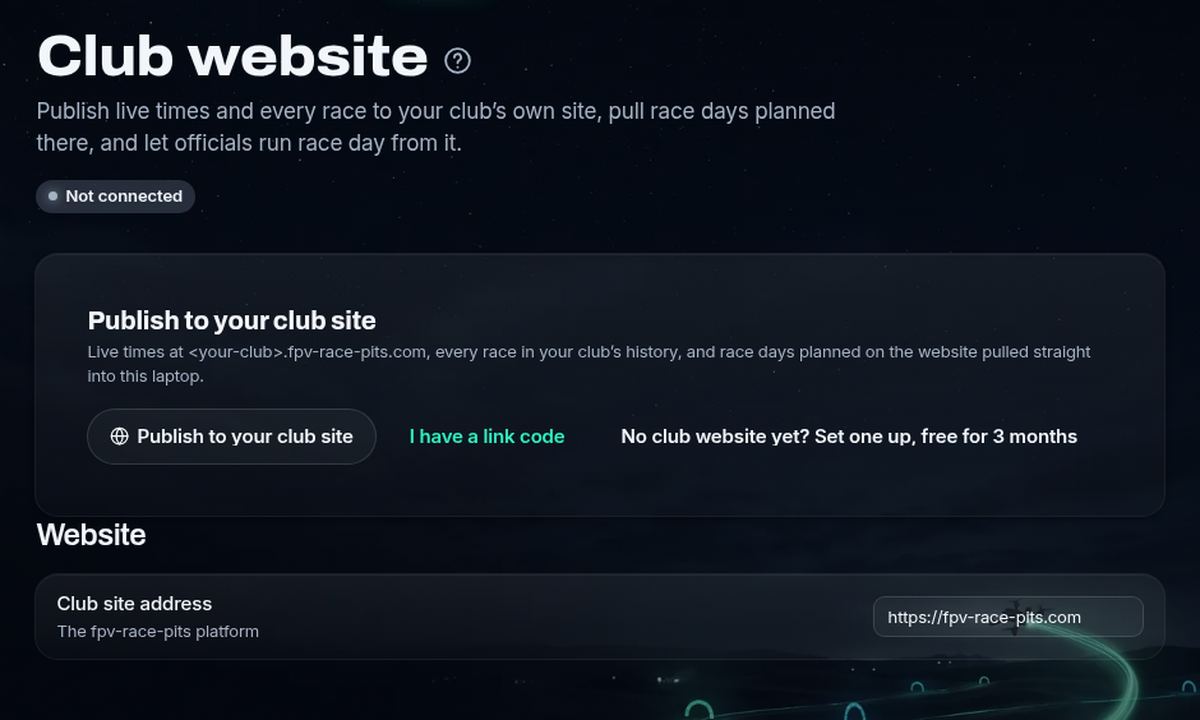
The timing app: Setup → Club website, before connecting - Click Publish to your club site. The app shows a code like ABCD-EF23 and a QR code.
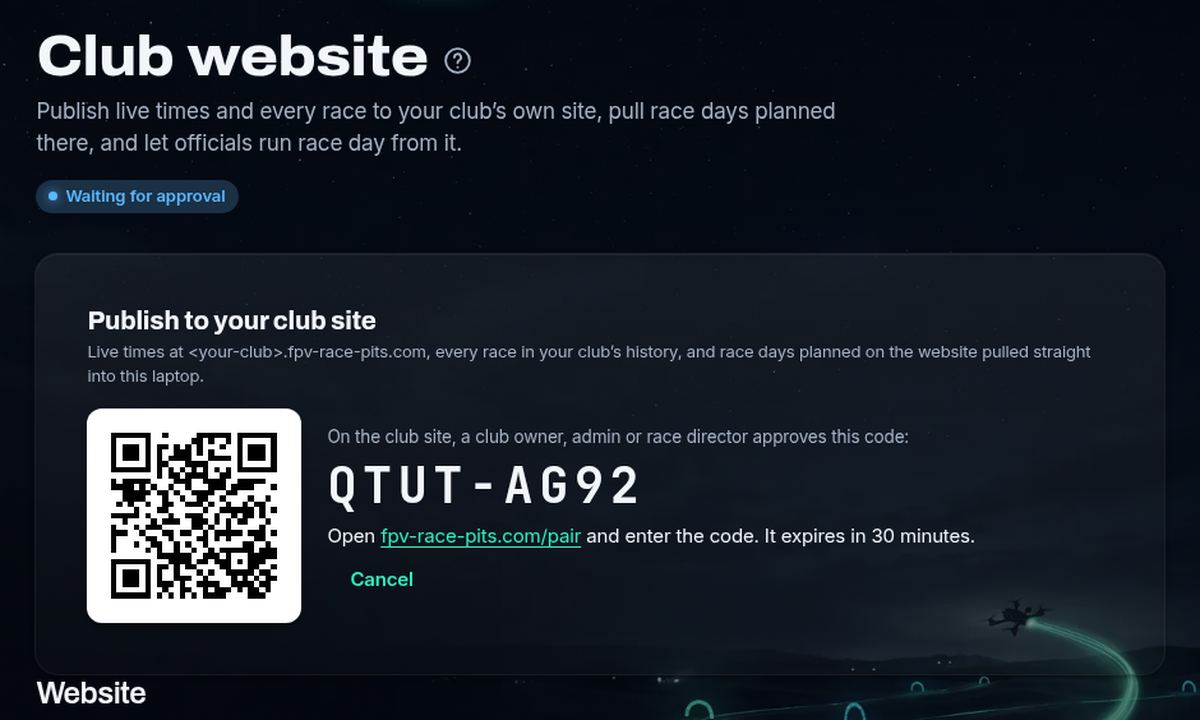
The app shows a code and a QR code to approve - On your phone or any computer, open fpv-race-pits.com/pair (or scan the QR code), sign in and type the code.
- Check your club under Publish to, give the laptop a name like “Main track”, and press Approve.
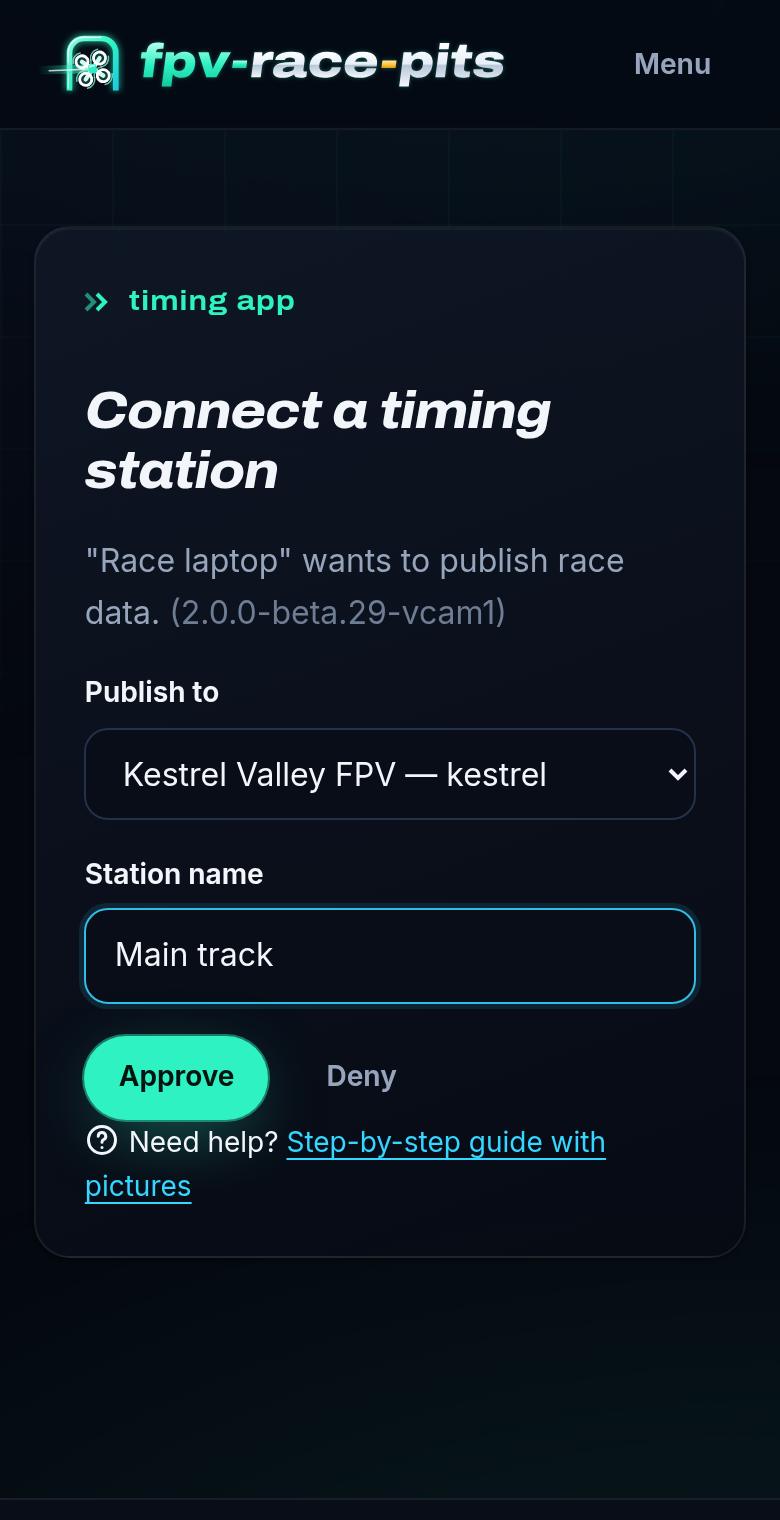
fpv-race-pits.com/pair on a phone: pick the club and approve - Back on the laptop, the page now says Publishing to your club and the connection is Online. Done. You only do this once per laptop.
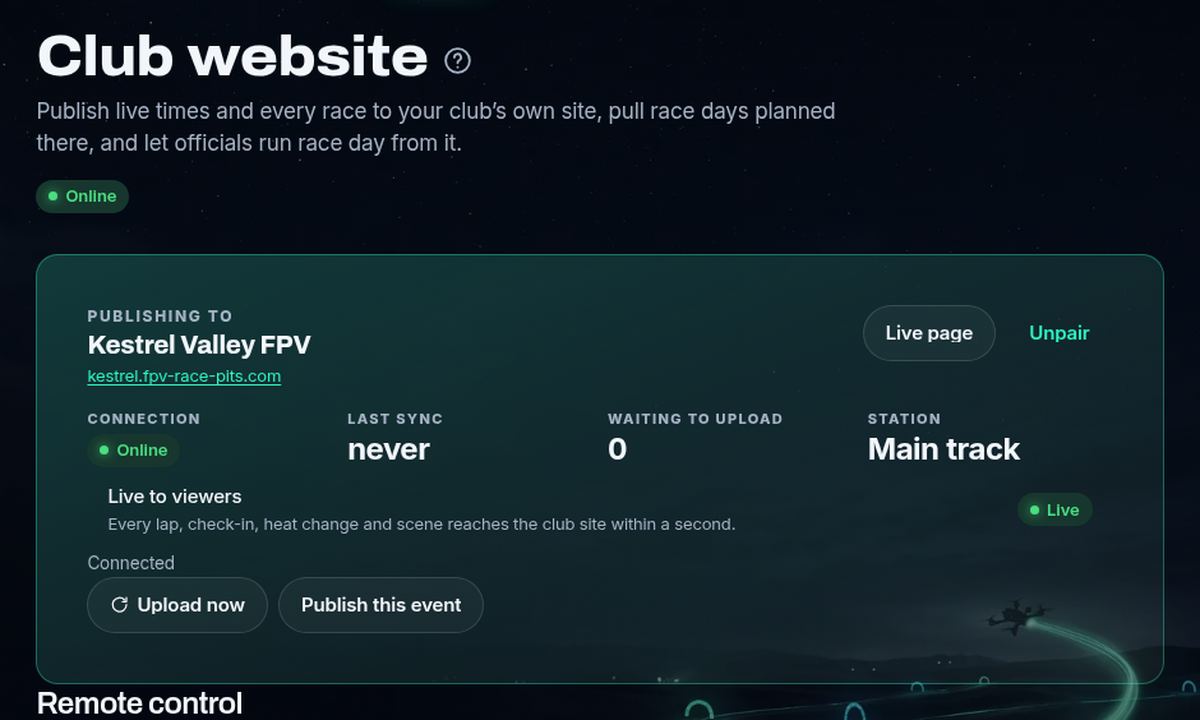
Connected: the app says Publishing to, Online
What shows up on your club website
- Every lap, live. Usually within a second of the pilot crossing the gate.
- Heats and line-ups, with channels and who's up next.
- Results and standings for every race day, kept for good.
- Pilots, each with their own page, laps and personal bests.
- Brackets as they are raced.
- YouTube links for each heat when you stream.
- Your club's look. The colours and logo set in the app can go to the website too (Club website → One look, online and at the field).
It works the other way too: race days planned on the website (entries, check-in, heats) come down to the laptop. Under Race days on the Club website page, press Pull race day.
Check it's working
- On the laptop, Setup → Club website shows Online and Waiting to upload: 0.
- Press Live page, or open your-club.fpv-race-pits.com/live on your phone.
- Run a practice heat. The laps appear on the live page as they happen.
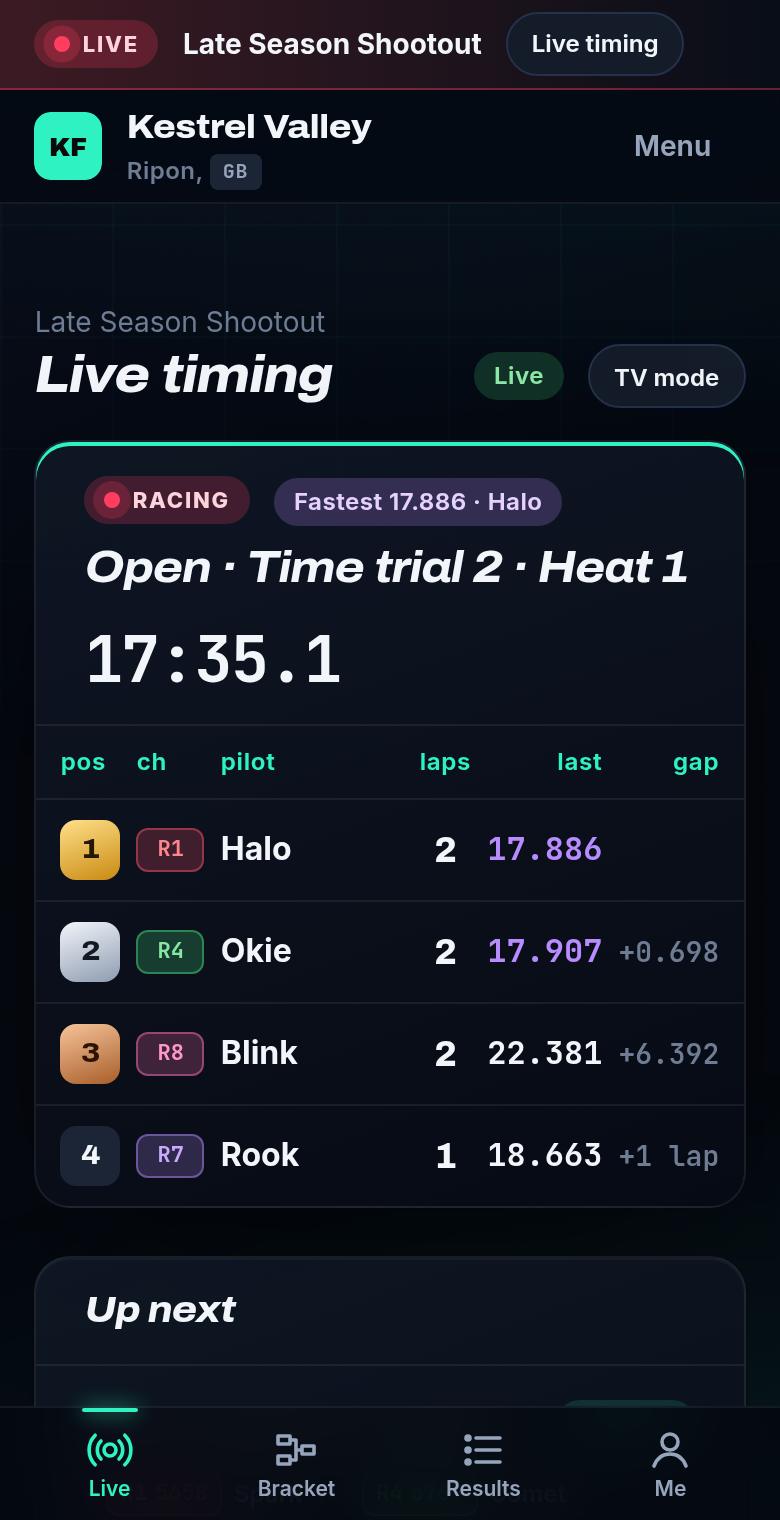
The club's live page on a phone
Race day without internet
- The timing app never needs the website to race. Timing, the race caller, the stream and results all work offline.
- While offline, every lap and result waits safely on the laptop. The Club website page shows Offline and how many changes are Waiting to upload.
- When the laptop is back online (a phone hotspot is enough) it catches up by itself, in order. Nothing is lost and nothing is sent twice.
More than one laptop or timing station
- Each laptop connects on its own. Repeat the steps on each one and give each a different name, like “Track A” and “Track B”.
- The Free and Club plans include one timing station. Pro has no limit. See pricing.
- Manage on your club site lists every connected laptop under Timing stations, with a green dot when it's online.
Something not working?
“That code is unknown or has expired.”
Codes last 30 minutes. In the app press Cancel, then Publish to your club site again for a fresh code.
It's publishing to the wrong club.
In the app press Unpair, then connect again and pick the right club under Publish to.
“You need to be an owner, admin or race director…”
Ask your club's owner to approve the code, or to make you a race director in Manage → Team.
The app can't reach the website.
Check the laptop has internet by opening any website. Venue or school Wi-Fi sometimes blocks apps, so try a phone hotspot. The app only needs the normal secure web connection to fpv-race-pits.com, nothing special.
Laps don't appear on the website.
Check the Club website page says Online. If it says Offline, the laps are waiting and will go up when the connection is back. Make sure you're looking at the same club's live page.
What goes in “Club site address”?
Leave it as https://fpv-race-pits.com. It works for every club, including clubs with their own domain.
It says Read-only.
The club's account needs attention (Manage → Subscription). Nothing is lost: the laptop keeps every change and uploads it as soon as that's sorted.
Disconnecting a laptop
- On the laptop: Setup → Club website → Unpair. The laptop forgets the connection. Race data stays on the laptop and on the website.
- From the website (a lost or sold laptop): Manage → Timing stations → Disconnect next to that laptop.
Prefer to watch?


Related guides
Still stuck?
Ask in our community or send us a message. A real person reads every one.