
What is the club app?
- Every club on fpv-race-pits has its own app, from the club's own address (like your-club.fpv-race-pits.com) and in the club's colours.
- It shows live times as laps are crossed, the race dashboard, brackets, results, my next race with your channel, and your laps.
- There's nothing to find in an app store. You add it to your home screen straight from the club's website. It takes about 20 seconds and it's free.
The easy way: the pop-up
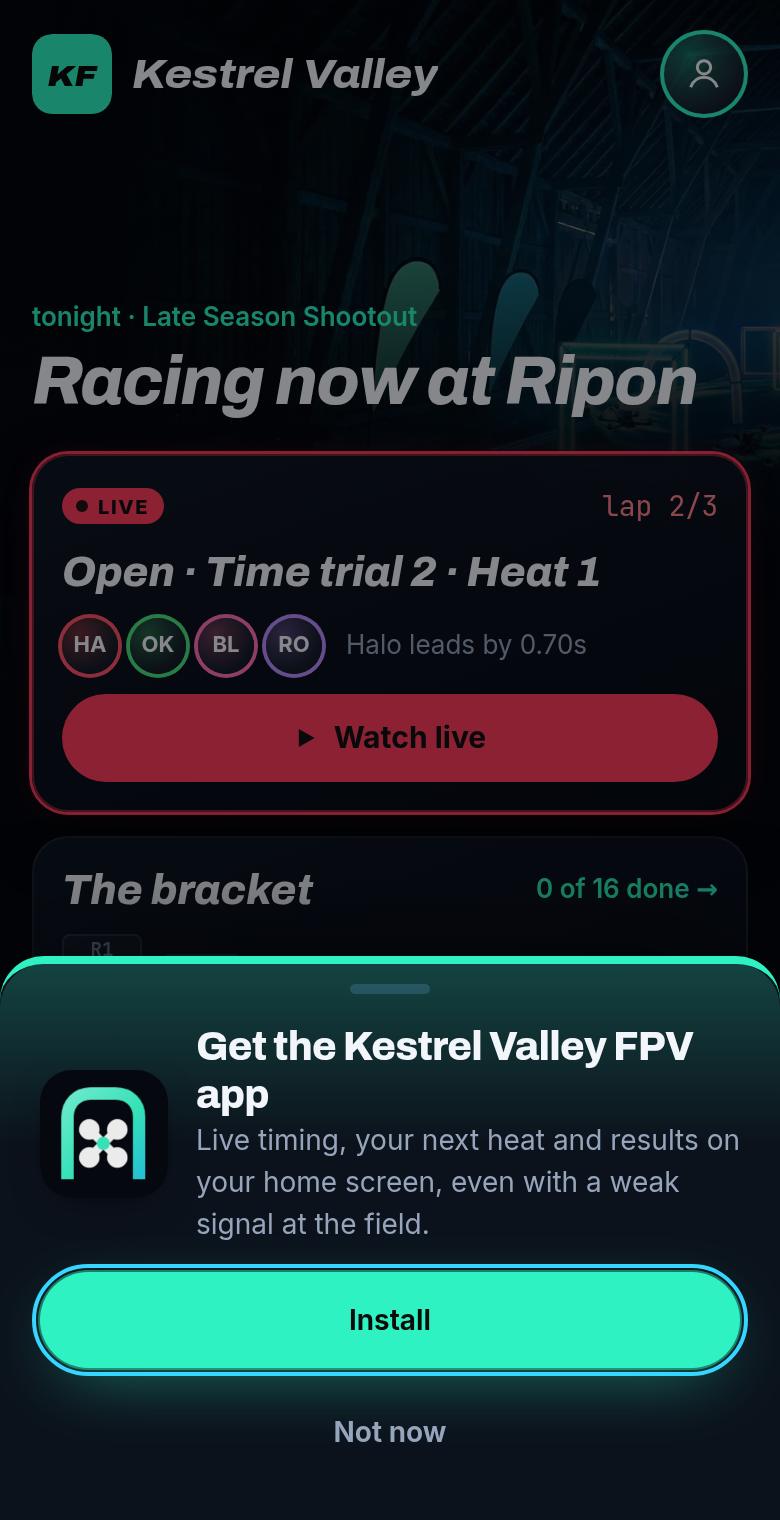
- The first time you open a club's website on a phone, it offers you the club's app.
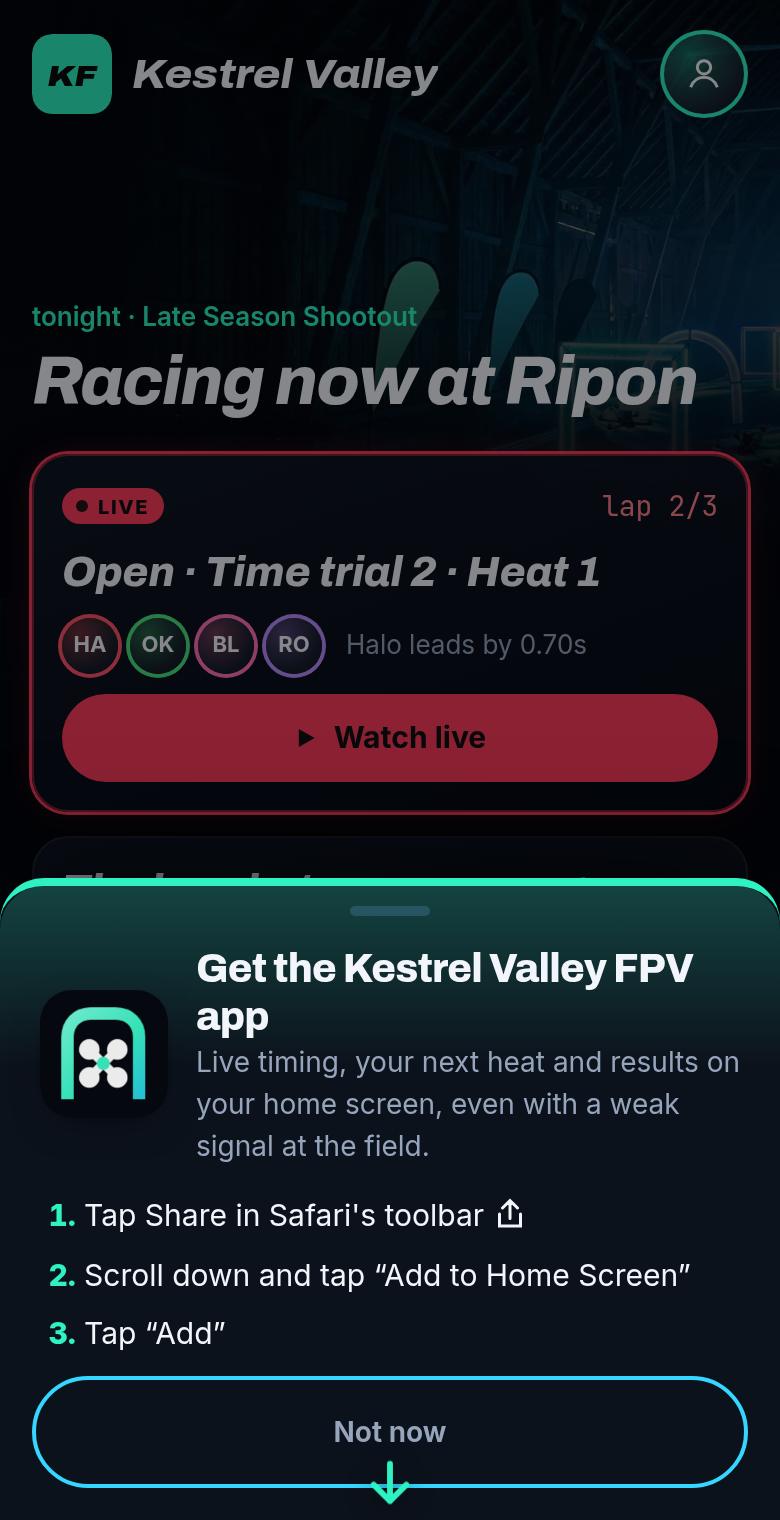
- On Android, tap Install. On iPhone, follow the three steps. The arrow points at Safari's Share button.
- Tap Not now and it won't ask again for two weeks. Any time, open Get the app at the bottom of the club's site or in the Me tab.
iPhone and iPad
- Open the club's website in Safari. On iPhone only Safari can add apps to the home screen. In Chrome, Facebook or Instagram, copy the link and open it in Safari.
- Tap the Share button (a square with an arrow pointing up). It's at the bottom of the screen on iPhone and at the top on iPad.
- Scroll down and tap Add to Home Screen.
- Tap Add. The club's icon is now on your home screen. Open the app from there.
Android
- Open the club's website in Chrome.
- Tap Install in the club's pop-up. No pop-up? Tap the menu ⋮ and choose Install app or Add to Home screen.
- Tap Install again to confirm. The app sits with your other apps.
On a computer
In Chrome or Edge, open the club's website and click the install icon at the right end of the address bar, or open the browser menu and choose Install. Handy for a screen at the field.
Get a buzz before your heats
- Open the club's app and tap Me.
- Search for yourself (or a pilot you follow) and tap the name. The app now shows my next race, with the channel and about how long until it starts.
- Tap Allow notifications. You'll hear from the club when you're on deck and when your results are in. Nothing else.
Change your mind? Untick them in Me, or turn notifications off for the app in your phone's settings.
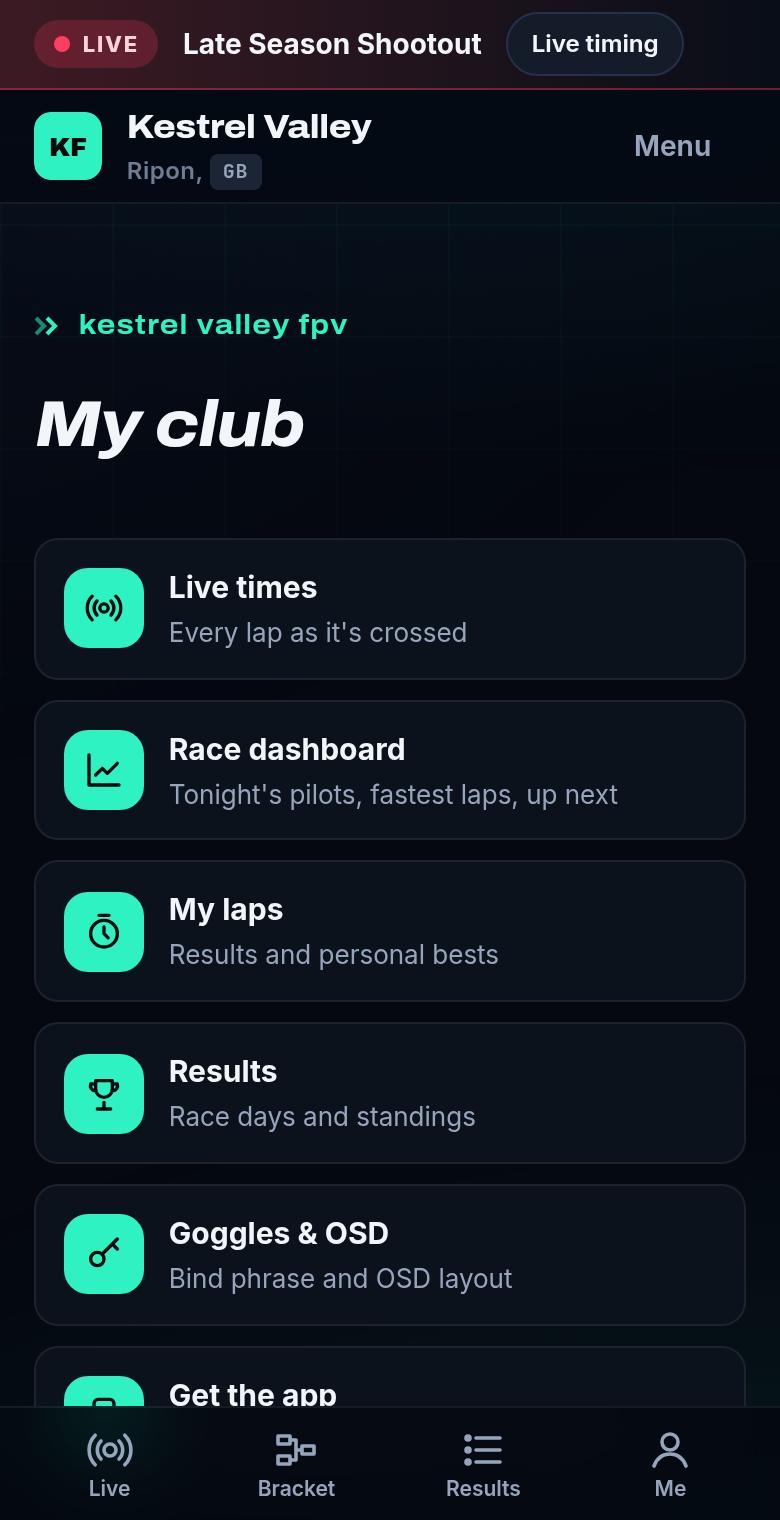
What's in the Me tab
- My next race, with your channel and roughly when.
- Live times and the race dashboard: every pilot tonight, fastest laps and who's up next.
- My laps: your results, best laps and personal bests at this club.
- Your entries, membership and payments.
- Goggles & OSD: your ExpressLRS settings (below).
Goggles & OSD (ExpressLRS)
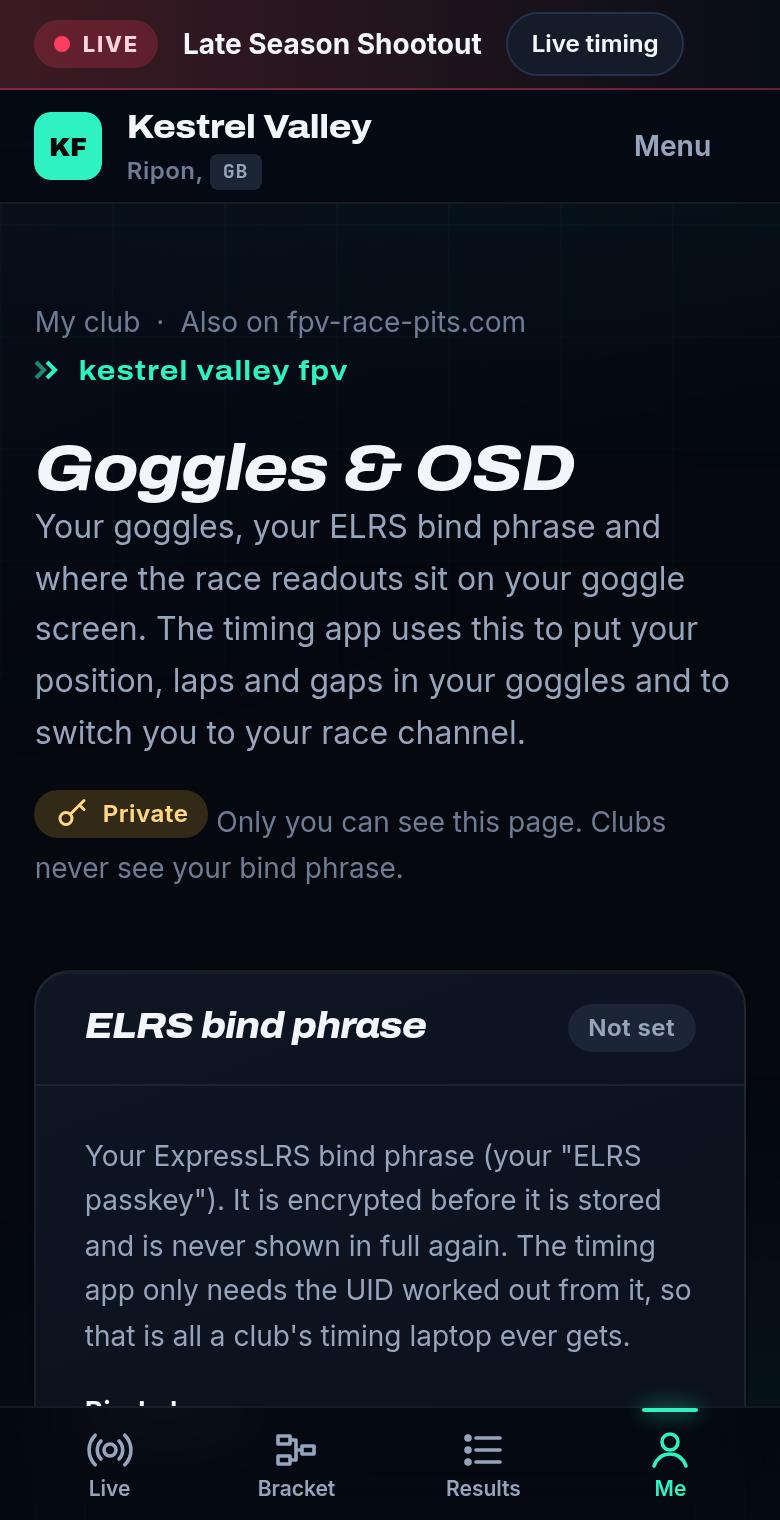
- Pilots can set their ExpressLRS bind phrase and the OSD layout for their goggles right in the club app: Me → Goggles & OSD.
- It's the same private settings as on fpv-race-pits.com (Account → Goggles & OSD). Set them once and every club you race with uses them.
- Your bind phrase is stored encrypted and only ever shown hidden. To see it or change it you confirm it's you first. Club officials never see it. Only the race laptop gets what it needs, on race day.
Several clubs, several apps
Race with more than one club? Add each club's app. Each has its own icon, colours and notifications, and your account works in all of them.
Removing the app
- iPhone: press and hold the icon, then choose to remove or delete it.
- Android: press and hold the icon and choose Uninstall (or drag it to Remove).
- Computer: open the app, open its menu and choose Uninstall.
Something not working?
I can't find “Add to Home Screen”.
You're probably not in Safari. Links opened from Facebook, Instagram or Chrome on iPhone can't add apps. Copy the link, open Safari, paste it, then try again.
There's no Install button on Android.
Use the menu ⋮ → Add to Home screen. On Samsung Internet: menu → Add page to → Home screen.
No notifications on iPhone.
Open the app from its home screen icon (not from Safari), check iOS is 16.4 or newer, then allow notifications in Me.
Related guides
Still stuck?
Ask in our community or send us a message. A real person reads every one.